Your camera roll is full of moments you meant to do something with.
That trip to the mountains last autumn. Your kid’s birthday party from eight months ago. The renovation photos you took every week for four months. The random Tuesday that turned out to be the last time everyone was together before someone moved away.
They’re all in there. Buried under 14,000 screenshots, blurry duplicates, and photos of receipts you’ll never need again.
The photos exist. The stories behind them are fading.
The good news: turning a set of photos into a proper memory story — something you can actually watch, share, and search through years from now — is no longer a weekend project. With the right app, it takes about three minutes. On your phone. Offline, if you want.
Here’s exactly how to do it.
What is a “memory story,” exactly?
Before we get into the how, it helps to be clear on what we’re aiming for — because “memory story” means different things in different apps.
At its best, a memory story is a narrated account of what happened, told through your photos. Not just a slideshow with music (though that’s part of it). Not just an auto-generated highlight reel that picks the sharpest images. A story — with context, emotion, and a sense of what it actually felt like to be there.
The difference matters because most photo apps stop at organisation. They sort your photos by date, group them by location, and make them searchable. That’s useful. But it leaves you doing the storytelling yourself.
The apps that go further — the ones that use AI to read your photos and write a warm, personal narrative around them — are a newer category. And as of 2026, only one of them does it entirely on your device, without uploading your photos anywhere.
What you need
- Your phone (iPhone or Android)
- A set of 3–15 photos from your camera roll — one event, trip, or moment works best to start
- The MemoBloom app (free, no account required)
- About three minutes
That’s genuinely it. No desktop software. No account creation. No uploading to a cloud service. Everything runs on your phone.
Step 1: Pick your moment
Open your camera roll and think about what you want to turn into a memory first.
The best first memories to try are ones with a clear beginning and end — a birthday dinner, a weekend trip, a specific afternoon. Aim for 5–10 photos that tell a coherent story on their own. If you pick 15 photos spanning six different occasions, the AI will do its best, but the narrative will feel scattered.
A few prompts if you’re not sure where to start:
- The most recent trip you took
- Your child’s last birthday
- A renovation or project you documented
- A holiday gathering from last year
- Any ordinary day you photographed more than usual, for whatever reason
Don’t overthink the photo selection. The AI is good at finding the thread. But giving it a focused set — one moment, one place, one event — gives you the strongest result.
Step 2: Download MemoBloom and open it
MemoBloom is free to download on the App Store and Google Play. No account, no sign-up — you open it and you’re in.
The free tier gives you up to 10 memories with full AI features, which is more than enough to get started and see whether this approach works for you.
When you first open the app, it will ask for permission to access your photo library. Grant it — this is how it reads your photos. Importantly, this access stays local. MemoBloom reads your photos on your device; it doesn’t upload them anywhere.
Step 3: Create a new memory
Tap the + button to start a new memory. You’ll be taken to your photo library inside the app.
Select the photos you chose in Step 1 — between 3 and 15. You can tap each one individually or use the date/album view to find a specific event faster.
Once you’ve made your selection, you’ll see an optional note field. This is where you can tell the story yourself, or give the AI a nudge. You have three options:
- Write the full story yourself — type it all out in your own words. The AI will use your note as the memory’s narrative.
- Write a short note — a sentence or two about what happened, who was there, or how it felt. The AI weaves your words into a richer narrative alongside what it sees in the photos.
- Leave it blank — the AI works purely from the photos and writes the narrative on its own.
Tip: Even a short note makes the narrative significantly more personal. Something like “Weekend in Porto with my sister. First time we’d travelled together in five years. It rained the whole time and we didn’t care.” gives the AI the emotional context that photos alone can’t show.
Step 4: Let the AI write your story
Tap Create Memory and put your phone down.
The on-device AI — running entirely on your phone’s chip, no internet required — now processes each photo. It reads the scenes, understands what happened, finds the emotional thread, and writes a warm personal narrative.
For a set of 5–10 photos on a recent iPhone or Android, this typically takes 1–3 minutes. Older devices may take a little longer. You’ll see a progress indicator; when it’s done, your memory is ready.
What comes out the other side is not a generic caption or a template. It’s a story — one that reads like it was written by someone who was there. The tone is warm and personal, not journalistic. It describes what the photos show while adding the texture that photos alone can’t capture.
Step 5: Watch it bloom
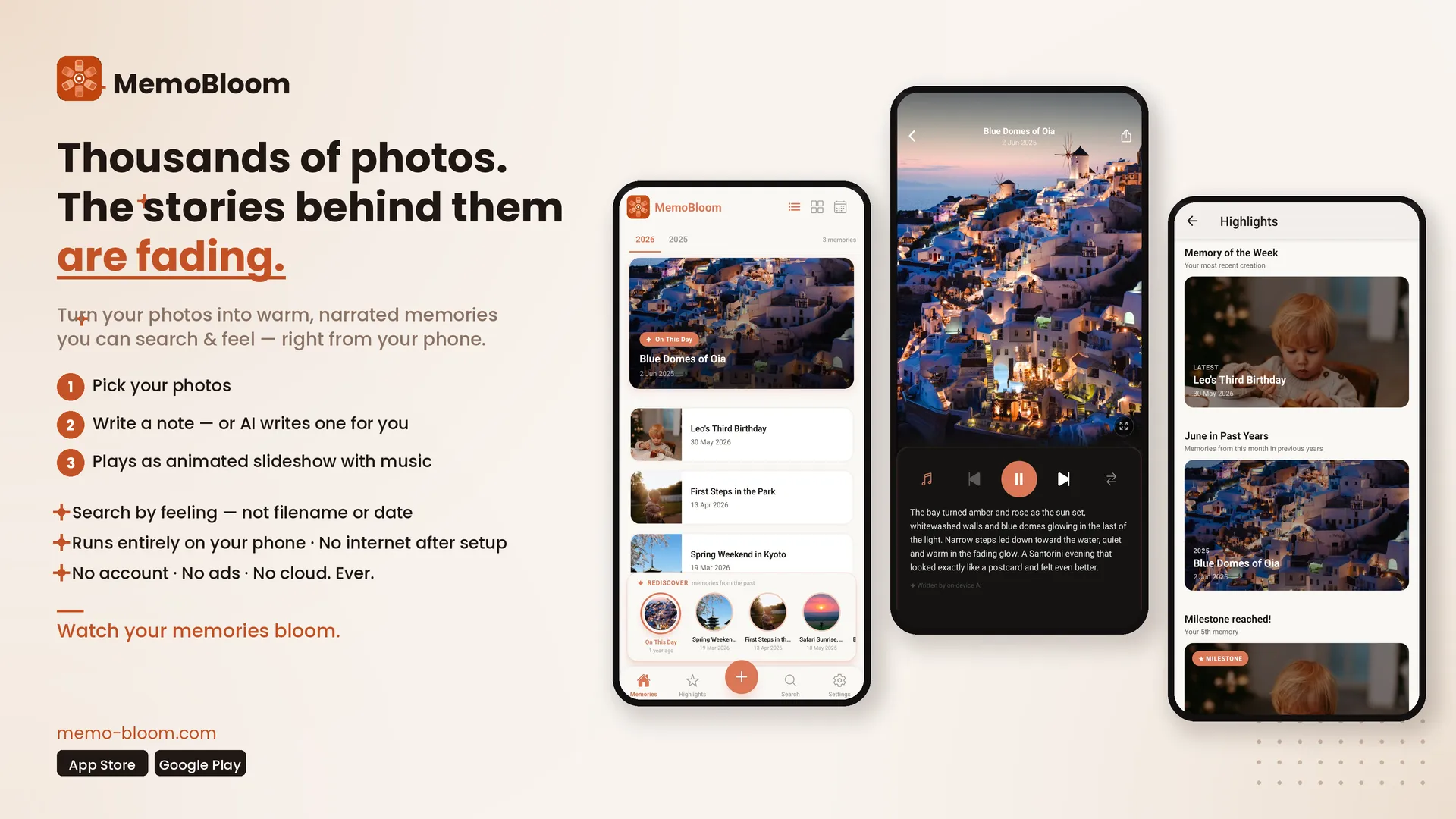
Tap your new memory and it plays back automatically.
Your photos appear in a smooth animated slideshow — Ken Burns motion on each image, cinematic transitions between them, and background music. Piano is included free for all users; Pro unlocks the full music library with additional tracks. The AI-written story appears on screen as narration text, in sync with each photo.
The first time you watch a memory you made, especially one from a year or two ago, the effect is surprisingly moving. It’s the same photos you’ve scrolled past a hundred times — but suddenly there’s a story around them.
From here you can:
- Re-watch it any time, from the app’s main memory feed
- Export as a Memory Film — a shareable video you can send via WhatsApp, save to your camera roll, or post anywhere. Free tier exports include a small watermark; Pro removes it.
Step 6: Search your memory later
This is the feature that makes MemoBloom genuinely useful as a long-term memory system, not just a one-time novelty.
Once you’ve created a few memories, try the search bar. Type something like:
- “beach with family”
- “birthday 2025”
- “Lisbon trip”
- “the day it snowed”
The semantic search understands what you mean, not just what you typed. It matches the description against the content of your memories — the photos, the narrative, the note you wrote — and surfaces the closest result instantly. No folders, no tags, no scrolling through 14,000 photos.
Step 7: Free up your camera roll (optional but satisfying)
Once you’ve created a memory from a set of photos, MemoBloom preserves everything — the photos, the AI story, the slideshow — inside the app. That means you can safely go back to your camera roll and delete the originals yourself if you want to reclaim storage.
For anyone drowning in camera roll clutter, this is a genuine quality-of-life improvement. You’re not losing your memories. You’re distilling them.
Tips for better memory stories
Use the note field. Even one sentence gives the AI crucial context. “First holiday after mum recovered” produces a completely different story than the AI guessing from the same set of photos.
One event per memory. A tightly focused set of photos produces a more coherent story than a mixed bag. If you have a big trip with lots of sub-moments, consider making multiple memories — one per day or place.
Don’t aim for perfect photos. MemoBloom is not a photo editing app. Blurry, underexposed, slightly wonky — it doesn’t matter. What matters is that the photos tell a story. A slightly blurry photo of your kid mid-laugh is a better memory than a technically perfect portrait.
Revisit old photos. The most rewarding memories to make are often ones from 2–3 years ago — events you barely remember the details of. Let the AI reconstruct the story from what’s there. You’ll be surprised how much it captures.
Try On This Day. Once you’ve built up a library of memories, turn on the On This Day feature. Each morning it shows you a memory from exactly one year ago. It’s a small thing, but it’s the kind of small thing that makes you glad you bothered. (More on why this feature works so well, if you’re curious.)
What about privacy?
Every step in this process happens on your device.
When MemoBloom’s AI reads your photos to write the story, it reads them locally — on your phone’s chip, in memory that never touches a network connection. The narrative it produces, the photos it processes, the note you wrote — none of it is transmitted anywhere. Not to MemoBloom’s servers, not to any third party.
You don’t create an account. There’s nothing to log into. MemoBloom collects only anonymous crash reports and purchase receipts — that’s it.
This matters more than it might seem. The photos you’re most likely to want to turn into memory stories — family moments, personal milestones, intimate everyday life — are also the photos you most want to stay private. With MemoBloom, they do.
Read more: The best private photo app in 2026
How long does it take, really?
- Selecting photos: 1–2 minutes (once you know which event you want)
- Writing a note: 30 seconds (optional)
- AI processing: 1–3 minutes for 5–10 photos
- Watching the result: 2–4 minutes depending on the memory length
Total: under 10 minutes from deciding to try it to watching your first memory play back.
For subsequent memories, it gets faster — you develop a feel for which photos to pick, and the note-writing becomes second nature.
Your camera roll is a time machine you’ve never opened
Every photo in there is a door back to a moment you lived. Most of them will stay closed forever, buried under the weight of everything you’ve photographed since.
Turning your camera roll into memory stories doesn’t require hours of editing, a subscription to a complex app, or uploading your most personal photos to a cloud server. It takes three minutes, a phone, and an app that does the storytelling for you.
The memories are already there. MemoBloom just helps you find them. (If you're thinking about this less as a one-off and more as a long-term family archive, we go deeper on that in our guide to preserving family memories digitally.)
Try MemoBloom free
Three minutes to your first memory. No account needed.
MemoBloom is available free on iPhone and Android. All AI processing runs on-device. No account required. No photos are uploaded or stored externally.